For anyone who needs a MacBook image for a landing page, Product Hunt gallery, deck, portfolio or Mac App Store marketing, and would rather not open Photoshop or search a template library.
MacBook mockups from your own screenshot, in the browser.
Most MacBook mockups are Photoshop files you download, open, and edit through a smart object. MockupX skips that step: choose a MacBook Air or MacBook Pro M5 frame, drop in a screenshot, and export the finished image from the browser. The frames below are the ones built into the editor.
MACBOOK AIR · PRO
Your screen, on a MacAir M5 · Pro M5
QUICK ANSWER
Start with the job, then choose the frame.
To make a MacBook mockup, capture your screen at 16:10 (for example 2880 × 1800 on a Retina Mac), choose a MacBook Air or MacBook Pro frame and finish, fit the screenshot to the display, then set the background and canvas size for where the image will be used. MockupX does all of this in the browser, with no PSD or plugin.
Browse product & device generators →Pick a MacBook frame when the audience expects a Mac, such as a macOS app or a web app aimed at Mac users. For a neutral laptop or no hardware at all, the laptop or browser mockup is often cleaner.
MacBook mockup frames you can use today
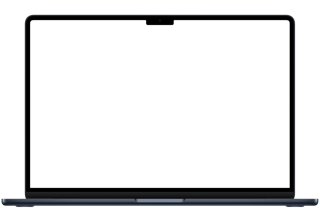
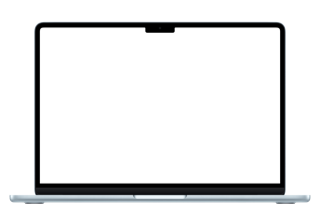
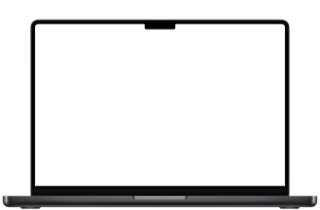
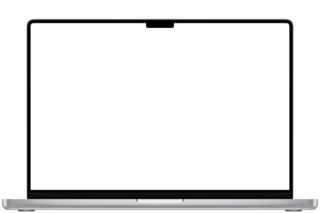
Which MacBook frames are included
The editor includes front-facing frames for the MacBook Air M5 in 13-inch and 15-inch sizes and the MacBook Pro M5 in 14-inch and 16-inch sizes. The Air comes in Midnight, Silver, Sky Blue and Starlight; the Pro in Silver and Space Black. Each frame has its screen area mapped, so a screenshot fits inside the display instead of floating on top of the bezel.
- MacBook Air M5 13″ and 15″: Midnight, Silver, Sky Blue, Starlight
- MacBook Pro M5 14″ and 16″: Silver, Space Black
- Front-facing view that keeps the interface readable
Capture a screenshot that fits a MacBook display
MacBook displays are close to 16:10, so a 16:10 capture fills the screen without awkward cropping. On a Retina Mac, a full-screen capture is typically 2880 × 1800 or larger; a browser window resized to a 16:10 shape works too. Hide the Dock and menu-bar clutter, close unrelated tabs, and swap any customer data for realistic sample content before you capture. If your screenshot is wider or taller, use fit to keep everything visible or fill to crop to the display.
Match the finish and background to the brand
A dark finish such as Midnight or Space Black reads best on light or mid-tone backgrounds; Silver and Starlight need a darker or more saturated background to keep the outline visible. Keep the background simpler than the screenshot, use one accent color, and leave room around the laptop so the image survives crops on social feeds and in slide layouts.
- Dark finishes on light backgrounds
- Silver or Starlight on deeper colors
- Generous outer margin for later crops
Make a MacBook mockup in four steps
The whole flow happens in the MockupX editor, without a download or a plugin.
- Open the editor and choose the MacBook frame category, then pick the model and finish.
- Paste, drop or upload a 16:10 screenshot and choose fit or fill for the display.
- Pick a canvas size for the destination (16:9 for slides and launch pages, 1:1 or 4:5 for social) and set the background.
- Export a PNG or JPEG at the exact size and check it at the size people will see.
MacBook mockup FAQ
Is this a free MacBook mockup?
The MacBook frames are available in the MockupX editor on the free plan, with PNG and JPEG export at the exact canvas size. MockupX Pro adds WebP and 2× high-resolution export.
Do I need Photoshop or a PSD file?
No. The MacBook frames are built into the browser editor. You upload a screenshot and export the finished image without opening Photoshop, Figma or a smart object.
What screenshot size works best for a MacBook mockup?
Use a 16:10 capture, such as 2880 × 1800 from a Retina Mac or a browser window resized to that ratio. Other sizes work with fit or fill, but 16:10 avoids letterboxing or cropping.
Which MacBook models are available?
MacBook Air M5 13-inch and 15-inch, and MacBook Pro M5 14-inch and 16-inch, each in its current finishes.
Can I use a MacBook mockup for Mac App Store screenshots?
You can use one in marketing artwork, but Mac App Store screenshots must be 16:10 at 1280 × 800, 1440 × 900, 2560 × 1600 or 2880 × 1800 pixels and should show the app in use. MockupX has Mac App Store canvas presets at 2880 × 1800 and 1440 × 900.